
Why Image Optimization Is a Business Growth Strategy
Let's get one thing straight: optimizing your website's images isn't just a technical chore you hand off to your developer. It's a core business decision that has a real, measurable impact on your bottom line. Every single unoptimized photo on your site could be actively costing you customers.
Think about it. When a potential client lands on your page, their first impression is almost entirely shaped by how fast it loads. Sluggish, heavy images cripple that initial experience, creating frustration that sends valuable traffic clicking away before they even see what you have to offer.
This isn't some minor inconvenience. It's a direct threat to your growth. Search engines like Google are obsessed with user experience, and a slow-loading site will inevitably watch its rankings slide. This is why mastering image optimization is non-negotiable if you're serious about your digital presence.
The Real Cost of Slow Images
So what’s the main culprit behind slow load times? More often than not, it's large, heavy images. In fact, browser data reveals that images can account for a massive 65% of the total page weight on mobile devices.
The metrics back this up. Even a tiny 100ms delay in Largest Contentful Paint (LCP)—a key speed metric often dragged down by images—can lead to a noticeable drop in sales for e-commerce sites. For any small or mid-sized business, that translates directly into lost leads and revenue.
"Every extra second a user waits for your page to load, their confidence in your brand erodes. Image optimization isn't just about speed; it's about building trust from the very first click."
Connecting Optimization to Your Goals
When you start looking at image optimization as a strategic tool, it shifts from being a hassle to a powerful way to hit your business goals. For example, product galleries that load in a flash create a smoother shopping experience, which naturally boosts sales. A service page that appears instantly keeps a potential client engaged, making them far more likely to fill out your contact form.
Here’s exactly how optimizing your images supports key business objectives:
- Improved User Experience: Fast visuals keep people on your site longer. This lowers your bounce rate and encourages them to explore more of what you offer.
- Higher Conversion Rates: A seamless, quick experience removes friction. When pages load without delay, customers are much more likely to complete a purchase or an inquiry.
- Better SEO Rankings: Google’s Core Web Vitals are all about user experience, and page speed is a huge part of that. Optimized images help you meet these crucial standards, which boosts your visibility in search results.
Ultimately, this whole process is fundamental to generating more leads. It's an essential piece of the puzzle, and to see the bigger picture, you can explore other overall website performance optimization strategies to make your entire site faster and more effective.
Choosing the Right Image Format for the Job
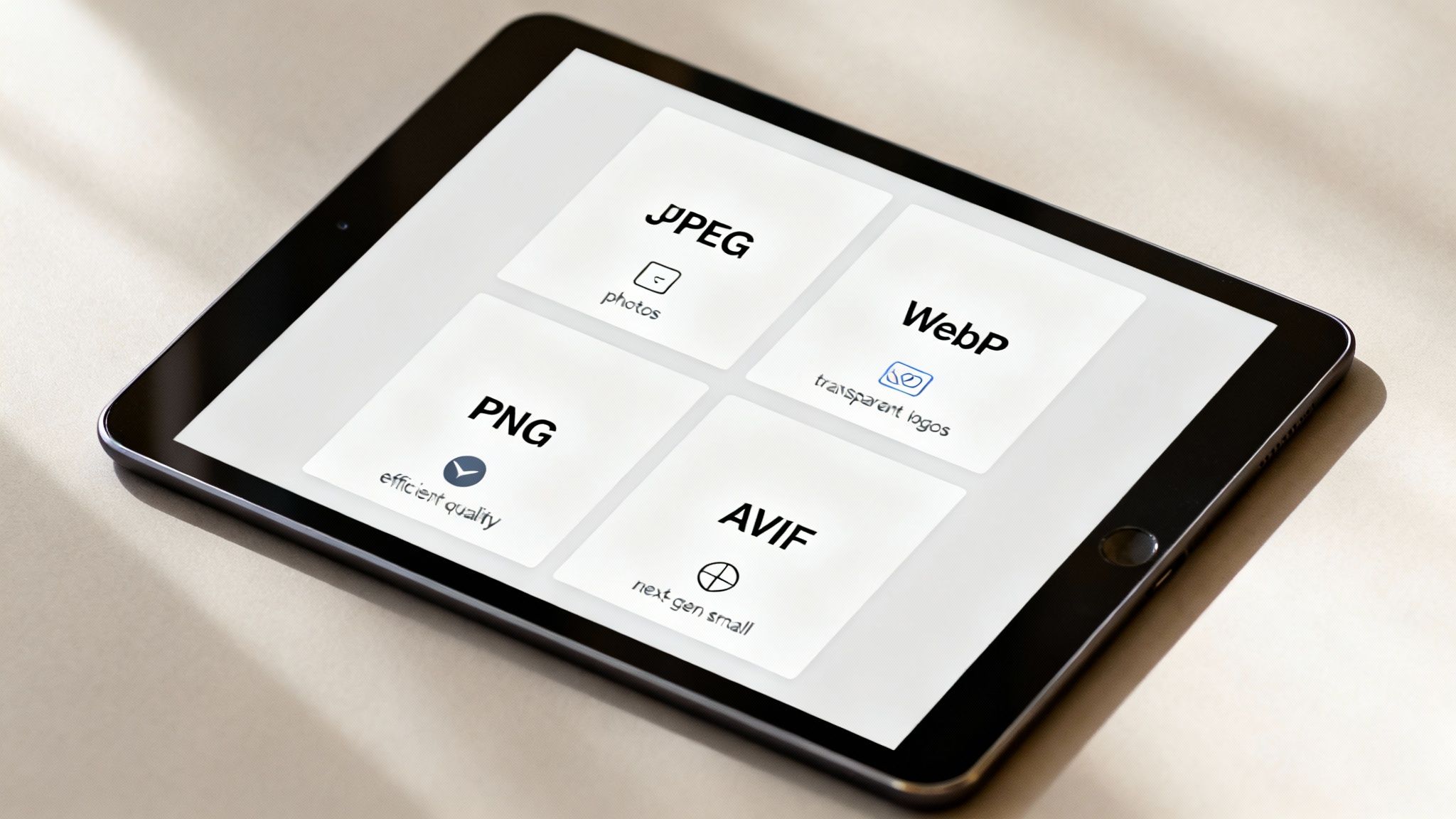
Picking the right image format can feel like decoding a secret language. You see acronyms like JPEG, PNG, WebP, and AVIF thrown around, but knowing which one to use—and when—is the first critical step in optimizing your website's images. This one choice has a huge impact on both your file sizes and how good your pictures look.
Make the wrong call, and you'll either end up with massive files that grind your site to a halt or images that look blurry and unprofessional. The real goal is to hit that sweet spot: the absolute smallest file size you can get away with while keeping your visuals crisp and clean.
The Tried-and-True Formats
For years, JPEG and PNG have been the workhorses of the internet, and they're still incredibly useful. Getting a handle on what they do best is foundational to any smart image strategy.
JPEG (or JPG): The Go-To for Photographs
This is your best friend for any picture with lots of colors and smooth gradients. Think product photos, big hero banners, or the images you use in your blog posts. JPEGs use what's called lossy compression, a clever trick that throws out tiny bits of data your eye probably won't even notice. The result? Much smaller files.
You can usually get away with compressing a JPEG down to 70-85% quality with almost no visible difference, which is a fantastic trade-off.
PNG: The Champion of Transparency
Got a logo, an icon, or any graphic that needs a transparent background so it can sit on top of other content? PNG is what you need. It uses lossless compression, which means it doesn't discard any data, keeping sharp lines and text perfectly crisp.
That quality comes at a price, though. PNG files are almost always much larger than JPEGs, so you should only pull them out when transparency is non-negotiable.
It's not about which format is "better"—it's about using the right tool for the job. Saving a colorful photograph as a PNG will make the file needlessly huge, while saving a logo as a JPEG will ruin its sharp edges and kill its transparency.
The Modern Powerhouses: WebP and AVIF
While JPEG and PNG are reliable, the new kids on the block offer a massive leap in efficiency. WebP and AVIF are your secret weapons for outperforming the competition, delivering superior compression that can make your site noticeably faster.
WebP: The New Standard
Developed by Google, WebP is a total game-changer. It can create files that are about 25-35% smaller than a similar-quality JPEG. It also handles transparency like a PNG but at a fraction of the file size.
With support now built into every major modern browser, there’s really no good reason not to use WebP for most images on your site.
AVIF: The Future of Image Compression
AVIF pushes optimization even further. It often produces files that are smaller than WebP, sometimes slashing file sizes by 50% or more compared to an old-school JPEG.
Browser support is now very strong, though still a hair less universal than WebP. But for anyone serious about performance, the benefits are too big to ignore. Adopting AVIF is a clear path to faster load times.
To help you decide at a glance, here’s a quick cheat sheet.
A Practical Comparison of Web Image Formats
Use this cheat sheet to quickly decide which image format best suits your needs, balancing quality, file size, and features.
| Format | Best Used For | Key Advantage | Key Disadvantage |
|---|---|---|---|
| JPEG | Photographs, hero images, banners | Great compression for complex images | No transparency, lossy compression |
| PNG | Logos, icons, graphics with sharp lines | Lossless quality and full transparency | Much larger file sizes |
| WebP | A modern replacement for JPEG & PNG | Excellent compression, supports transparency | Not supported by very old browsers |
| AVIF | The next-gen format for all images | The best compression available today | Slightly less browser support than WebP |
Ultimately, a smart workflow uses automation to serve the best possible format. Many modern Content Delivery Networks (CDNs) and website plugins will try to serve an AVIF file first. If the user's browser can't handle it, they'll fall back to WebP, and then finally to JPEG or PNG. This ensures everyone gets the fastest experience possible without leaving anyone behind.
Mastering Compression and Sizing Workflows
So you've picked the right format—now the real work begins. This is where you roll up your sleeves and get hands-on with the two most powerful tools in your image optimization kit: smart resizing and effective compression. Honestly, getting this workflow right is the difference between a website that feels sluggish and one that loads in a flash.
The single biggest mistake I see is people uploading an image straight from their camera or a stock photo site. A photo that’s 5000 pixels wide has no business being used for a 300-pixel thumbnail. It’s like trying to water a single houseplant with a fire hose—just a huge, inefficient waste of resources.
The First Rule: Always Resize First
Before you even think about compression, you have to resize your images to the actual dimensions they'll be displayed at. Your first job is to figure out the maximum size an image will ever need to be on your site. A great trick for this is to use your browser's "Inspect" tool. Just right-click on the area where the image will go and see how wide the container is.
If your blog post’s content area is 800 pixels wide, there is absolutely no reason to upload an image that's any wider. For those big, full-width hero banners, a width of 1920 pixels is usually a safe bet for most desktop screens.
- Blog Post Images: Typically 800px to 1200px wide.
- Hero Banners: Aim for 1920px wide.
- Product Thumbnails: Often much smaller, around 150px to 300px wide.
By resizing first, you’re literally throwing away millions of unnecessary pixels. This step alone gives you the single largest drop in file size you can possibly achieve. A well-built, high-performing website prioritizes this above all else.
Lossy vs. Lossless Compression: A Simple Guide
After resizing, it's time to compress. This process shrinks the file size even further by stripping out redundant data. You’ll hear about two main approaches: "lossy" and "lossless." Understanding the trade-off here is key.
Lossless compression is like neatly packing a suitcase. It organizes all the data more efficiently without throwing anything away. The file size gets smaller, but the image quality remains identical to the original. This is perfect for logos or sharp graphics where every single pixel counts.
Lossy compression, on the other hand, is like packing that same suitcase but deciding to leave behind a few socks you probably won't wear. It intelligently removes tiny bits of visual information your eye is unlikely to even notice. The result is a much, much bigger reduction in file size.
For almost all photos on the web, lossy compression is the way to go. A quality setting between 70-85% often hits the sweet spot, dramatically cutting down file size with virtually no noticeable drop in visual quality.
Building a Smart Delivery System with Responsive Images
Resizing for one specific dimension is a great start, but what about all the different screen sizes your visitors are using? You definitely don't want to force a smartphone to download that huge 1920px hero image. That’s where responsive images, using the srcset attribute, come into play.
Think of srcset as a menu of options you give the browser. You provide multiple versions of the same image at different sizes, and the browser intelligently picks the best one based on the user's screen size and resolution. This one technique prevents a tiny phone from downloading a massive desktop-sized image it doesn't need.
While this does require a bit of HTML, many modern website platforms and content management systems handle this for you automatically. Any professional website design will have this built-in, generating different image sizes when you upload something to make it easier to deliver a fast experience for everyone.
A Repeatable Workflow and Essential Tools
Your process for every single image should be consistent so nothing slips through the cracks. For an e-commerce store, for instance, mastering the optimal Shopify image sizes for product photos is a non-negotiable part of this workflow.
A solid, repeatable workflow looks something like this:
- Identify Dimensions: Figure out the maximum display size you need.
- Resize: Crop and resize the image to those dimensions using a tool like Photoshop, Canva, or a free alternative.
- Choose Format: Save it as a modern format like WebP or AVIF if you can.
- Compress: Run that resized image through a compression tool.
For quick and easy compression, tools like TinyPNG (which also handles JPEGs) are fantastic. They use smart lossy techniques to shrink files down without you having to think too much. For those of us who want more control, desktop apps like ImageOptim give you precise settings to play with.
Ultimately, the best results come from a multi-faceted approach. To truly optimize like a pro, you should use next-gen formats like AVIF and WebP, which can reduce file sizes by an incredible 40-60%. Combine that with responsive images using srcset and lazy loading for images below the fold, and you'll slash your load times dramatically.
Using Images to Boost SEO and Accessibility
Every single image on your site is an untapped SEO asset. It's easy to think of them as just window dressing, but when you handle them correctly, images become powerful tools for boosting your search engine visibility and making your site accessible to everyone.
Search engines like Google don't actually "see" your images. They're blind to the visual content. Instead, they rely on the text-based clues you provide to understand what an image is all about. This is where smart optimization turns your visuals into a magnet for organic traffic.
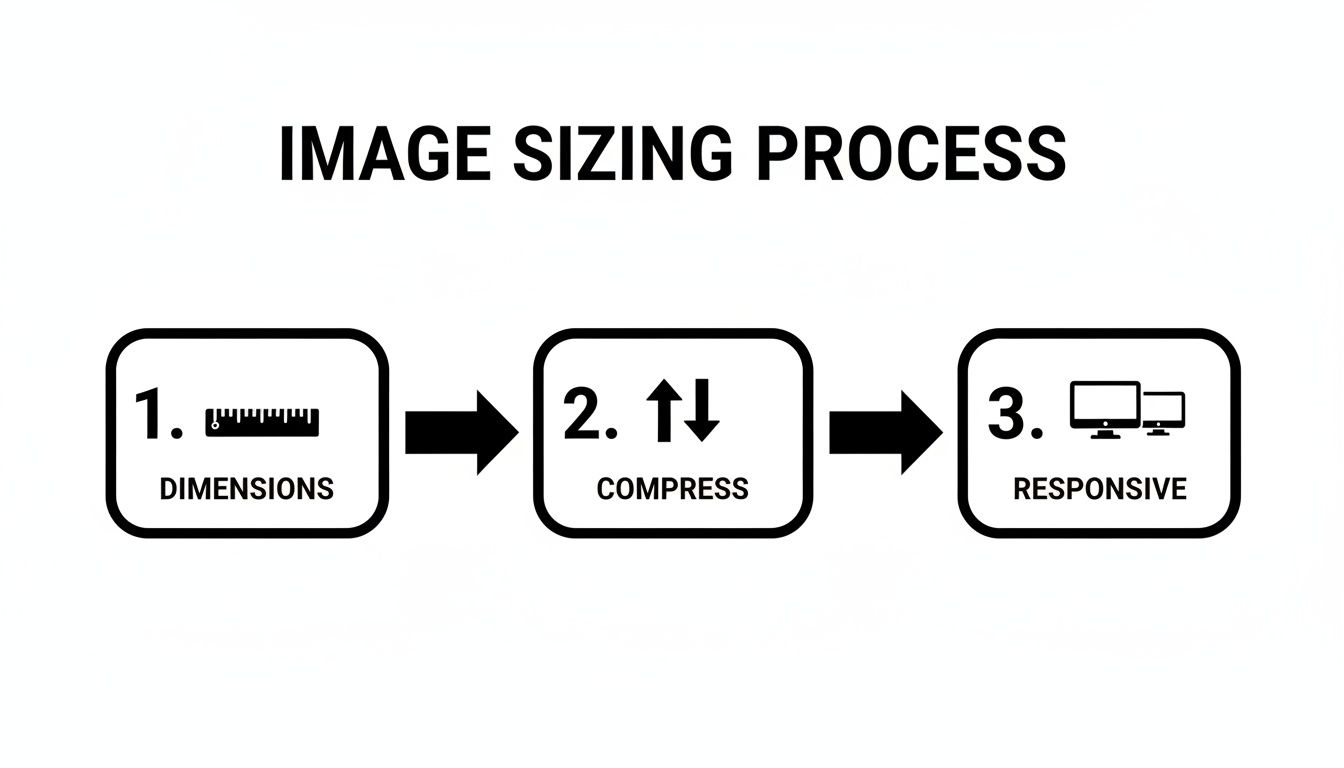
This simple process shows that optimization isn't just one step. It's a series of deliberate choices you make about an image's dimensions, compression, and how it's delivered to the user.
Crafting Alt Text That Works for Everyone
If there's one thing you can't skip, it's the alt text. This is a short, descriptive sentence in your image's HTML that pulls double duty:
- For Accessibility: Screen readers read it out loud, which means visually impaired users can understand the context and content of your images.
- For SEO: It tells search engines exactly what the image shows, helping them index it correctly for relevant image searches.
Good alt text is all about being descriptive but concise. Don't just say "dog." A much better alt text would be, "golden retriever catching a red frisbee in a sunny park." This paints a clear picture for both screen readers and search engine crawlers.
Naming Your Image Files for Search Engines
Before you even think about uploading an image, you have a golden opportunity to give Google a major hint: the file name. A generic name like IMG_4075.jpg is a completely wasted SEO opportunity. It tells search engines absolutely nothing.
Instead, get into the habit of renaming your files with descriptive, keyword-rich language. Always use hyphens to separate words—it's the standard format search engines prefer.
- Poor File Name:
DCIM_0023.jpg - Good File Name:
morristown-nj-local-bakery-chocolate-croissant.jpg
This takes only a few seconds, but it's a powerful signal that helps your images rank in relevant searches. This is one of the key benefits of SEO for small businesses, as small, consistent efforts like this compound over time to build a strong search presence.
Using Image Sitemaps to Guide Google
If your site is heavy on visuals—think photography portfolios or e-commerce stores—an image sitemap is an incredibly valuable tool. Your main sitemap tells Google about your pages, but an image sitemap gives specific information about the images on those pages.
This ensures Google discovers and indexes all of your visual content, even images loaded with JavaScript that crawlers might otherwise miss. You can add image information to your existing sitemap.xml file or create a separate one. Many WordPress SEO plugins can even automate this for you, making it an easy win.
Automating and Scaling Your Image Delivery
Manually optimizing every single image is a great way to learn the ropes, but it's not a long-term solution. As your website grows, that manual process becomes a huge bottleneck. To keep your site blazing fast, you need to shift from one-off fixes to an automated system.
The goal is simple: work smarter, not harder. By setting up a few key systems, you can ensure every user gets the best possible experience, and you won't have to lift a finger for each new photo you upload.
Deferring Images with Lazy Loading
One of the most powerful and easiest wins is lazy loading. Think about how people browse a long webpage—they only see what's on the screen. Anything "below the fold" is out of sight, so why load it right away? Lazy loading tells the browser to hold off on loading images until they are just about to scroll into view.
This has a massive impact on your initial page load speed. Instead of downloading every single image at once, the browser can focus on rendering the critical, visible content first. The result? A site that feels light and incredibly responsive.
Implementing it is shockingly simple. Modern browsers have a native loading attribute you can add right into your image tags:
loading="lazy"
Many modern CMS platforms and plugins can even apply this for you automatically, making it a "set it and forget it" trick that delivers huge performance gains.
Supercharging Delivery with a Content Delivery Network
A Content Delivery Network, or CDN, is your secret weapon for delivering images to a global audience at top speed. It's a network of servers strategically placed all over the world. A CDN works by storing copies (or "caches") of your images on these servers.
When a visitor from another country lands on your site, the CDN serves them images from the server physically closest to them. This dramatically cuts down the distance the data travels, which means faster load times for everyone, no matter where they are.
A CDN isn’t just for giant corporations. For any business with a diverse audience, it’s one of the most effective ways to improve user experience and reduce latency. It’s a foundational piece of a truly scalable image delivery strategy.
The real-world numbers don't lie. In 2017, optimizing images helped Zitmaxx Wonnen achieve 50% more mobile conversions and a 98.7% jump in mobile revenue by hitting 3-second load times. NDTV's 2020 image fixes slashed bounce rates by 50%. A CDN, perfect for a company like SWAT's Turbo Listings across 65+ directories, can speed things up by as much as 60%. You can explore additional web development data to see just how profound these strategies are.
Leveraging CMS Plugins and Automation Tools
If you’re running on a CMS like WordPress or an e-commerce platform like Shopify, you’re in luck. There’s an entire ecosystem of plugins and apps designed to put your whole workflow on autopilot.
These tools handle all the tedious steps right when you upload an image.
What a good plugin can do:
- Automatic Resizing: Set your maximum dimensions once, and the plugin will automatically resize any oversized images to fit your rules.
- Smart Compression: They apply powerful lossy or lossless compression to shrink file sizes without you ever needing to open an external tool.
- Next-Gen Format Conversion: The best plugins will automatically create and serve WebP or AVIF versions of your images to browsers that support them, giving you modern formats with no extra work.
Here are a few popular and highly effective options for WordPress:
- Imagify: A powerful all-in-one solution that offers aggressive compression, resizing, and WebP conversion.
- ShortPixel: Known for its high-quality compression algorithms, it can also optimize PDFs and create AVIF files.
- EWWW Image Optimizer: This plugin is very flexible and can even handle some optimizations on your own server for more control.
By integrating one of these tools, you transform image optimization from a chore into a seamless background process. This frees you up to focus on what really matters—creating great content and growing your business.
Your Top Image Optimization Questions, Answered
Knowing the "how-to" is one thing, but what happens when you're in the thick of it, staring at a media library bursting with images? That's when the real questions pop up. Let's tackle some of the most common ones I hear from clients all the time.
This is your cheat sheet for those "what if" moments. Nailing these details is what separates the novices from the pros.
How Do I Know What Size My Images Should Be?
The perfect size always comes down to where the image will actually live on your site. There’s a great little trick for this: just right-click on the area where the image will go and use your browser's "Inspect" tool. This lets you measure the container holding the image, telling you the absolute maximum width it will ever need.
For those big, beautiful, full-width hero banners, 1920px wide is a solid, safe number for most desktops. For images nestled inside a blog post or product description, you rarely need to go wider than 1200px.
The golden rule here is simple: never upload a massive 4000px photo straight from your camera if it’s only going to be displayed at 800px. Always resize it down to its maximum display size first. This one step will give you the single biggest reduction in file size.
Once you’ve resized, then you can worry about compression.
Will Compressing My Images Make Them Look Blurry?
Not if you do it right. This is where knowing the difference between the two types of compression becomes critical.
If you're worried about quality, lossless compression is your best friend. It reduces file size without any drop in visual quality by simply organizing the data more efficiently.
Lossy compression is where you get the massive file size savings, but it can degrade quality if you get too aggressive. For most JPEGs you'll use online, a quality setting between 70 and 85 is the sweet spot. The file becomes dramatically smaller, but the visual difference is almost impossible for the human eye to catch. Always preview the compressed image before saving to make sure you’re happy with the result.
Can I Optimize Images Already on My Website?
Absolutely, and you should make it a priority. Auditing your existing images is a crucial part of website maintenance.
If your site is on a platform like WordPress, this is a piece of cake. Plugins like ShortPixel or Smush are built for this exact task. They can scan your entire media library and automatically bulk-optimize every single image you’ve ever uploaded. They'll handle the resizing, compression, and even convert old formats to WebP.
If you aren't using a CMS with these kinds of tools, the job is more manual. You’ll have to download the images, optimize them with a desktop tool, and then re-upload them to replace the old, clunky files.
What’s More Important: File Format or Compression?
This is a classic "chicken or the egg" question. The real answer? They're a team. One can't do its job properly without the other. It's like asking whether a car's engine or its wheels are more important—you need both to get anywhere fast.
Choosing the right format, like WebP over JPEG, gives you a much better starting point. But even a perfectly formatted WebP image still needs compression to be as lean as possible. A truly optimized image follows a specific sequence you should never skip:
- Resize it first to the max dimensions it will be shown at.
- Save it in the most efficient format for what it is (e.g., WebP for a photo).
- Apply smart compression to shrink the file size without a noticeable hit to quality.
Skipping any of these steps means you're leaving performance on the table and slowing your site down.
At SWAT Marketing Solutions, we build high-performing websites where every detail, including image optimization, is handled with expert care to drive growth and generate leads. Learn how our web design services can transform your online presence.